
Microsoft Excel Integration
Microsoft Excel Integration
Stream Live Measurement Data Directly Into Spreadsheet Environments
Installation Steps
Download Add-in
Download the Sense streamer Excel add in our website.
Install Add-in
Run the installer and follow the on-screen instructions to complete installation.
Connect Device
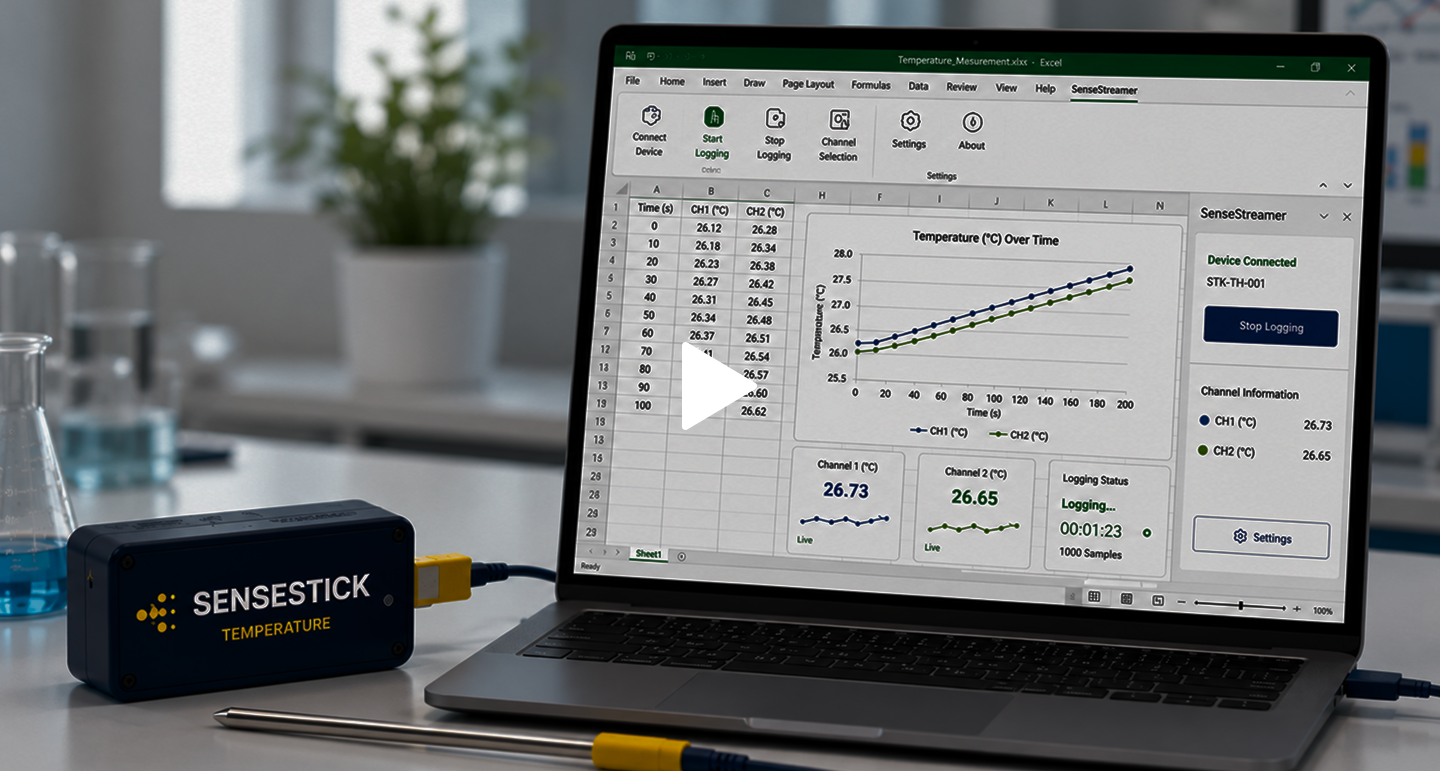
Connect your sensestick device to your computer via USB.
Start Measuring
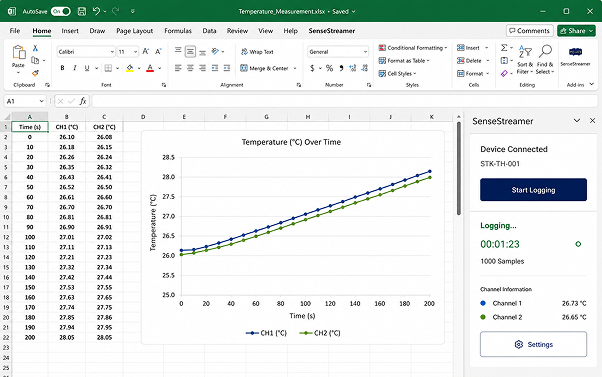
Open Excel, Enable the add-in and start logging data in real time.
Installation Steps
Download Add-in
Download the Sense streamer Excel add in our website.
Install Add-in
Run the installer and follow the on-screen instructions to complete installation.
Connect Device
Connect your sensestick device to your computer via USB.
Start Measuring
Open Excel, Enable the add-in and start logging data in real time.
Installation Steps
Download Add-in
Download the Sense streamer Excel add in our website.
Install Add-in
Run the installer and follow the on-screen instructions to complete installation.
Connect Device
Connect your sensestick device to your computer via USB.
Start Measuring
Open Excel, Enable the add-in and start logging data in real time.
Quick Start Guide
Related Documentation
Explore more resources to learn and get the most out of SESNSESTICK in Excel.
Related Documentation
Explore more resources to learn and get the most out of SESNSESTICK in Excel.
Related Documentation
Explore more resources to learn and get the most out of SESNSESTICK in Excel.
Need Help Getting Started?
Our team is ready to help you set up and start measuring with SENSESTICK in Microsoft Excel.