
ONLYOFFICE Spreadsheet
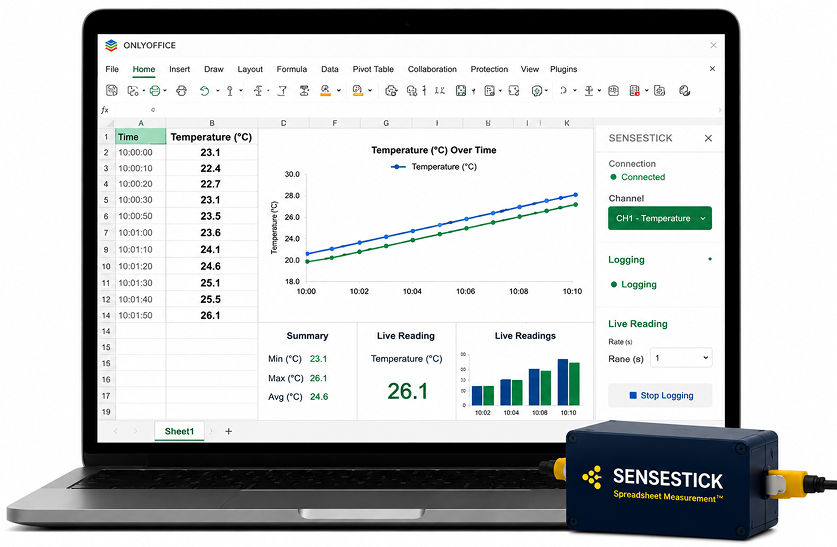
Installation Steps
Download ONLYOFFICE Spreadsheet
Download the Google sheets Connector from our website
Install ONLYOFFICE Connector
Authorize with your Google Account to Continue
Connect SENSESTICK Device
Connect your sensestick device to your computer via USB.
Start Logging Data
Start Logging and stream data directly to Google Sheets in the cloud
Installation Steps
Download ONLYOFFICE Spreadsheet
Download the Google sheets Connector from our website
Install ONLYOFFICE Connector
Authorize with your Google Account to Continue
Connect SENSESTICK Device
Connect your sensestick device to your computer via USB.
Start Logging Data
Start Logging and stream data directly to Google Sheets in the cloud
Installation Steps
Download ONLYOFFICE Spreadsheet
Download the Google sheets Connector from our website
Install ONLYOFFICE Connector
Authorize with your Google Account to Continue
Connect SENSESTICK Device
Connect your sensestick device to your computer via USB.
Start Logging Data
Start Logging and stream data directly to Google Sheets in the cloud
Quick Start Guide
Related Documentation
Explore more resources to learn and get the most out of SESNSESTICK in Excel.
Related Documentation
Explore more resources to learn and get the most out of SESNSESTICK in Excel.
Related Documentation
Explore more resources to learn and get the most out of SESNSESTICK in Excel.
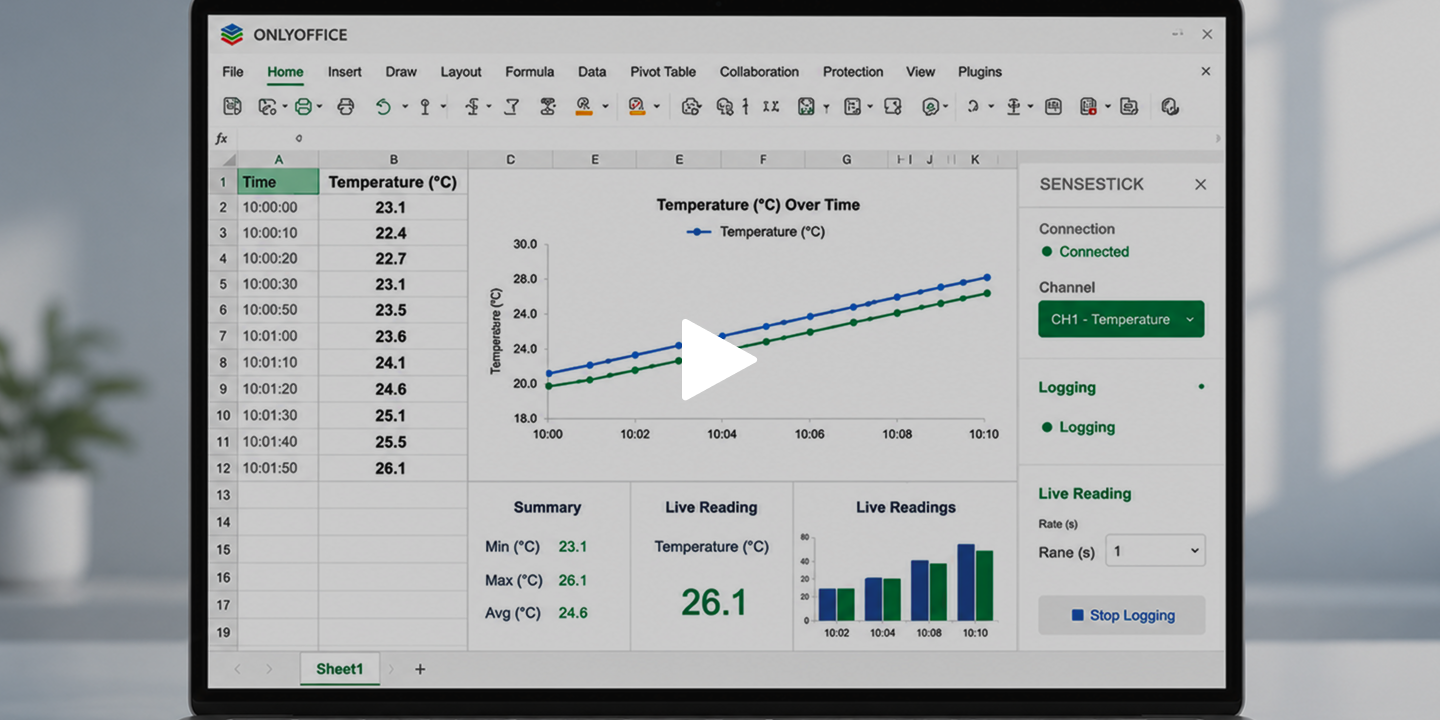
Ready for Open - Source Measurement?
Use SENSESTICK with LibreOffice Calc for a Completely
Open and Flexible Measurement Workflow.